HackHub Ultimate Hacker Simulator HackHub Controls & Shortcuts
Type faster, manage windows cleanly, and avoid platform-specific gotchas.
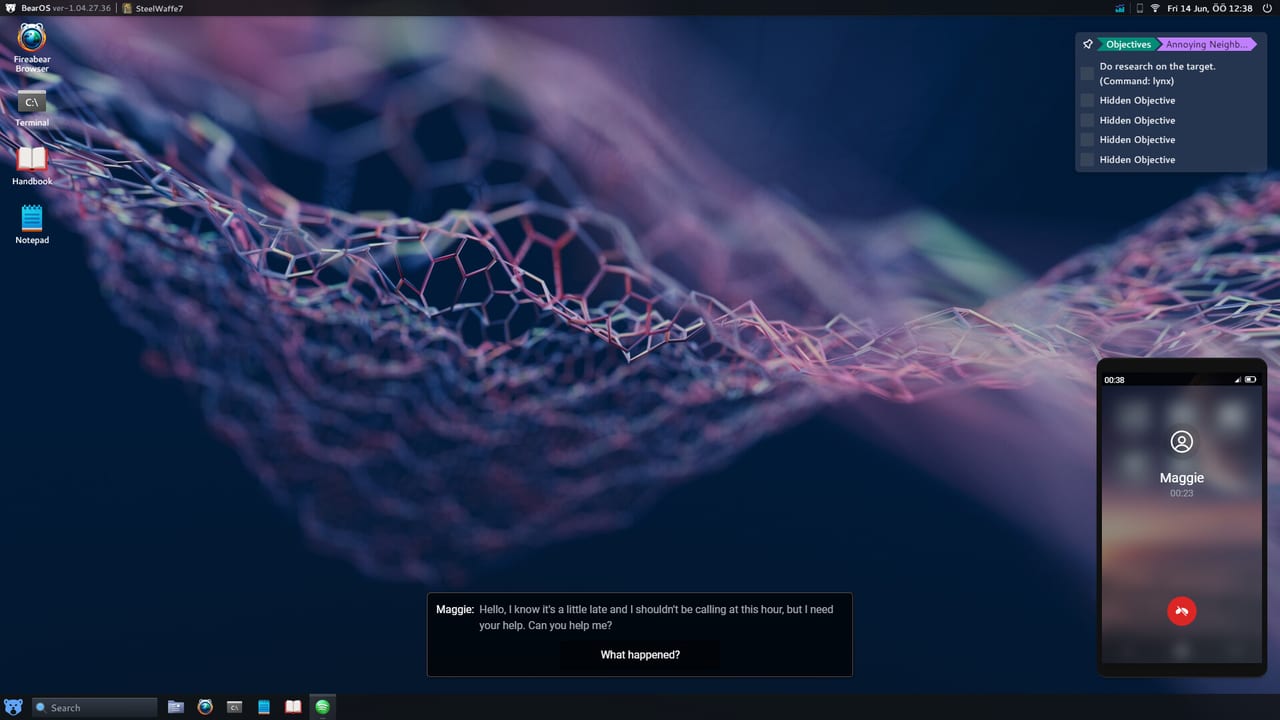
HackHub Ultimate Hacker Simulator plays like a real desktop OS wrapped inside Steam. Most of your time sits in the terminal, but mail clients, browsers, router panels, and Code++ all compete for focus. Clean control habits shorten every nmap rerun and keep you from pasting exploits into the wrong window.
Mouse and desktop basics
- Left click — select icons, buttons, and terminal insertion point.
- Drag — move windows; position terminal and mail side by side for story chapters.
- Scroll — review long
nmapoutput and Metasploit logs. - Double-click — open desktop apps from icons.
Pin frequently used apps (Terminal, Mail, Browser) to the taskbar equivalent on first launch. Reopening from the desktop wastes seconds that add up during timed contracts.
Desktop multi-select and file management (patch 1.0.12+)
HotBunny added modern desktop selection in patch 1.0.12 (August 5, 2026) and expanded rename in 1.0.15:
| Action | Input |
|---|---|
| Box-select icons | Drag a rectangle across desktop or folder |
| Toggle item | Ctrl+click |
| Range select | Shift+click |
| Select all | Ctrl+A |
| Clear selection | Escape |
| Move group | Drag any selected icon — grid snap preserved |
| Delete group | Delete key — confirms, sends to recycle bin |
| Rename file | F2 on desktop or in File Explorer (1.0.15+) |
F2 rename (1.0.15): the rename field grows with your text; click away to accept, Escape to cancel, blank name cancels. With multiple icons selected, F2 renames the first item. Hover any file to see the full filename tooltip.
Use multi-select to batch-move loot downloads before Hydra or Password Cracking sessions. See Post-1.0 Patches for full 1.0.12–1.0.16 notes.
Streaming Mode (patch 1.0.12+)
Streaming Mode masks visible IP addresses and email addresses on screen with neutral labels so viewers cannot copy your session targets. Clipboard, logs, and scripts still use real values — only the UI display is redacted. Toggle before broadcasting Multiplayer or long story chapters.
Right-click copy and paste (patch 0.8.27+)
HackHub terminals accept standard line editing:
| Action | Windows | macOS |
|---|---|---|
| Recall previous command | Up Arrow | Up Arrow |
| Reverse search history | Ctrl+R (if supported) | Ctrl+R (if supported) |
| Interrupt running scan | Ctrl+C | Ctrl+C |
| Clear screen | clear command | clear command |
| Autocomplete path/filename | Tab | Tab |
Commands execute on Enter. Do not prefix with $ unless copying from a guide that shows prompt decoration — the game parses the command name directly.
Copy and paste uses the OS clipboard. On Windows, Ctrl+C copies when text is highlighted outside a running job; inside terminal mid-process, Ctrl+C cancels. On macOS, Cmd+C / Cmd+V apply when the terminal window is focused. If paste fails after alt-tabbing, click inside the terminal once before retrying.
Window management tips
Story missions reference mail while you scan. Layout recommendation:
- Terminal full height on the left half.
- Mail or browser on the right half.
- Minimize unused apps to reduce mis-clicks.
Metasploit sessions open their own panes — keep show options output visible before typing exploit. Losing track of RHOST is the most common self-inflicted bug.
In-game apps with special input
Code++ uses a text editor interface with its own save shortcut (check in-app tooltips). Fern router panels use mouse-driven forms — keyboard tab order varies by router model in your save. Database Manager expects manual typing of IP, username, and password; paste from your loot notes file to avoid typos.
Bettercap and Hashcat runs can be long. Do not click away thinking the job paused — confirm completion messages before closing windows.
Browser and lynx-style navigation
Some objectives use text-mode browsing (lynx <url>) to find employee names or hidden paths. Arrow keys move selection; Enter follows links. Quit with q when documented in the mission — leaving sessions open clutters task switching.
Mail and messaging
Phishing chapters require filling recipient, subject, and body fields. Tab between fields or click explicitly; unsent drafts do not trigger NPC online status. After sending, wait for the reply notification before rescanning targets — covered in Journalist’s Sister.
Multiplayer and chat
Online 1.0 modes may expose lobby chat or voice outside the game client via Steam overlay. Default Steam overlay is Shift+Tab on Windows; macOS may differ based on Steam settings. See Multiplayer for mode-specific bindings.
Accessibility considerations
Font size adjustments live in desktop Settings if your build includes them. High contrast helps read green-on-black scan output. There is no substitute for readable window layout — zoom the OS display scaling at the Steam launch options level if UI text is tiny on 4K monitors.
Recommended practice drills
New players should drill from Getting Started:
- Type
nmap <ip> -sVwithout looking at the keyboard. - Recall last three commands with Up Arrow only.
- Alt-tab between terminal and mail in under two seconds.
Pair drills with How to Play so muscle memory matches the investigation loop.
Command reference shortcut
When you forget flags, open the in-game handbook or visit Tools Commands rather than guessing -p vs -port syntax. Wrong flags produce empty output that looks like a broken mission.
Platform-specific issues
macOS builds occasionally report desktop icon glitches after sleep — relaunch from Steam if apps fail to open. Windows fullscreen borderless avoids focus theft from notifications. Verify drivers if Wi-Fi capture tools fail despite correct Wi-Fi and Hashcat steps.
Related guides
Controls alone do not teach hacking logic. Continue to Port Forwarding when router GUIs appear, and System Requirements if input lag suggests hardware limits rather than skill gaps.
Frequently Asked Questions
Quick answers to common HackHub questions.
How do I cancel a running nmap scan in HackHub?
Press Ctrl+C in the terminal while the scan is active. Wait for the prompt to return before issuing a new command.
Why does paste not work in the terminal on macOS?
Click inside the terminal window to focus it, then use Cmd+V. Steam overlay or another app may steal focus after you switch.
Is there a sprint or movement key?
HackHub is desktop-based, not a first-person walker. Navigation is mouse-driven between apps and windows.
Can I remap keys in HackHub?
Use Steam Input or OS-level keyboard layouts. In-game remapping is limited; most players adjust OS settings instead.
Where are Metasploit-specific shortcuts documented?
Metasploit follows standard msfconsole commands. See Tools Commands for set, show options, exploit, and sessions.
How do I rename files quickly after the August 2026 patches?
Press F2 on the desktop or in File Explorer. Patch 1.0.15 expanded the rename field and added full-name tooltips on hover.
What is Streaming Mode in HackHub?
A patch 1.0.12 option that masks IPs and emails on screen for streamers. Copy, logs, and scripts still receive real session values.